23 Haz

C# Disable Or Hide Close Button(X) in Windows Form

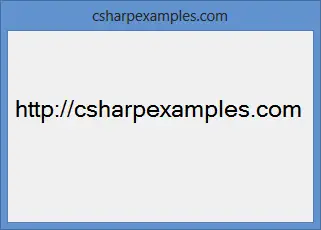
This examples show how to hide/disable close button(X) in C#. To achieve this, we must override the CreateParams method in Form class.

Disable Close Button:

            
        //Disable close button
        private const int CP_DISABLE_CLOSE_BUTTON = 0x200;
        protected override CreateParams CreateParams
        {
            get
            {
                CreateParams cp = base.CreateParams;
                cp.ClassStyle = cp.ClassStyle | CP_DISABLE_CLOSE_BUTTON;
                return cp;
            }
        }

Disable Close Button

Remove The Entire System Menu:

        //remove the entire system menu:
        private const int WS_SYSMENU = 0x80000;
        protected override CreateParams CreateParams
        {
            get
            {
                CreateParams cp = base.CreateParams;
                cp.Style &= ~WS_SYSMENU;
                return cp;
            }
        }            

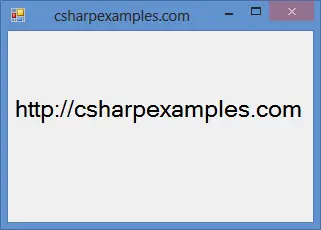
Remove Entire System Menu

22 Haz

C# Generic Cache Manager Example

This examples shows how to implement a generic cache manager class in C#. We often need to cache to the some objects in our programs, ecpecially for objects that frequently access. Following sample is implemented for this purpose.

Usage:


            CacheManager<string> cm = new CacheManager<string>(); //keep this instance in a class

            cm.Add("key1", "data1", 5000);  //remove after 5 sc
            cm.Add("key2", "data2");        //don't remove from cache
            cm.Add("key3", "data3", 3000);  //remove after 3 sc
            cm.Add("key4", "data4");        //don't remove from cache

Also if we want to use only one cache manager instance, we can use Singleton Pattern in Design Patterns.

For more information about Singleton Pattern:
https://csharpexamples.com/c-multithread-singleton-pattern-example

Generic Cache Manager Class:


    public class CacheManager<T>
    {
        private Dictionary<string, T> _items = null;
        public CacheManager()
        {
            _items = new Dictionary<string, T>();
        }

        private void TimerProc(object state)
        {
            //Remove the cached object
            string key = state.ToString();
            this.Remove(key);
        }

        public void Add(string key, T obj, int cacheTime = System.Threading.Timeout.Infinite)
        {
            if (string.IsNullOrEmpty(key))
                throw new ArgumentNullException("key is null.");

            if (_items.Keys.Contains(key))
                throw new ArgumentException("An element with the same key already exists.");

            //Set timer
            System.Threading.Timer t = new System.Threading.Timer(new TimerCallback(TimerProc), 
                                                                 key, 
                                                                 cacheTime, 
                                                                 System.Threading.Timeout.Infinite);

            _items.Add(key, obj);
        }
        
        public bool Remove(string key)
        {
            if (string.IsNullOrEmpty(key))
                throw new ArgumentNullException("key is null.");
            
            return _items.Remove(key);
        }

        public T Get(string key)
        {
            if (string.IsNullOrEmpty(key))
                throw new ArgumentNullException("key is null.");

            if (!_items.Keys.Contains(key))
                throw new KeyNotFoundException("key does not exist in the collection.");

            return _items[key];
        }

        public void Clear()
        {
            _items.Clear();
        }
    }
22 Haz

C# Resize A Bitmap Example

This example shows how to resize a bitmap file in C#. To resize a bitmap image, we use Graphics class in System.Drawing namespace.

Usage:

            //Size of "testimage.bmp" file is 1024x1024.
            Bitmap bmp = (Bitmap)Bitmap.FromFile(@"C:\testimage.bmp");
            Bitmap newImage = ResizeBitmap(bmp, 512, 512);

Resize Method Example:

        public Bitmap ResizeBitmap(Bitmap bmp, int width, int height)
        {
            Bitmap result = new Bitmap(width, height);
            using (Graphics g = Graphics.FromImage(result))
            {
                g.DrawImage(bmp, 0, 0, width, height);
            }

            return result;
        }
21 Haz

Play Mp3 And Wav Files As Synchronous And Asynchronous In C#

Play A Wav File
SoundPlayer class in System.Media namespace controls playback of a sound from a .wav file. To play the Wav file, you should create a new SoundPlayer object. Then you should set the SoundLocation property to the location of your WAV file, and then use the Play method to play it.

Sample Usage:

            
            System.Media.SoundPlayer player = new System.Media.SoundPlayer();
            player.SoundLocation = @"C:\Test\CSharpExamplesSound.wav";
            player.Play(); //in another thread
            player.PlaySync(); //in same thread

“Play” method in SoundPlayer class plays the .wav file using a new thread. But “PlaySync” method in SoundPlayer plays thw .wav file in same thread.

Play a MP3 File
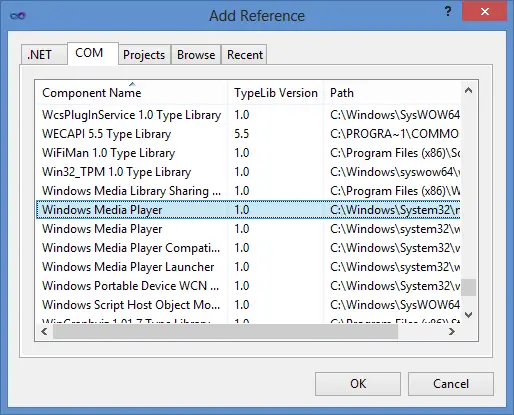
Above example only plays the .wav files. If you want to play “.mp3” or any other files are supported by windows media player, you can use MediaPlayer class. To use this class, you must add a reference to MedialPlayer.

Add Windows Media Player Reference

Sample Usage:

            
            var mediaPlayer = new MediaPlayer.MediaPlayer();
            mediaPlayer.FileName = @"C:\Test\CSharpExamplesSound.mp3";
            mediaPlayer.Play();

21 Haz

C# Sort Listview Items By Columns

The ListView control enables us to use sorting other than that provided by the Sorting property. When the ListView control sorts items, it uses a class that implements the System.Collections.IComparer interface. This class provides the sorting features used to sort each item. To use a custom item sorter, we create an instance of IComparer class and assign it to the ListViewItemSorter property of the ListView. Following sample shows us String and Datetime comparison for string and datetime columns in ListView control.

Sample project can be downloaded from following link:
ListViewSortColumnsExample.rar

Class examples that implements the System.Collections.IComparer interface:
Example 1:

    /// 
    /// Implements the manual sorting of items by column.
    /// 
    class ListViewItemStringComparer : IComparer
    {
        private int col;
        private SortOrder order;
        public ListViewItemStringComparer()
        {
            col = 0;
            order = SortOrder.Ascending;
        }

        public ListViewItemStringComparer(int column, SortOrder order)
        {
            col = column;
            this.order = order;
        }

        public int Compare(object x, object y) 
        {
            int returnVal= -1;
            returnVal = String.Compare(((ListViewItem)x).SubItems[col].Text,
                                       ((ListViewItem)y).SubItems[col].Text);

            // Determine whether the sort order is descending.
            if (order == SortOrder.Descending)
                // Invert the value returned by String.Compare.
                returnVal *= -1;

            return returnVal;
        }
    }

Example 2:

    class ListViewItemDateTimeComparer : IComparer
    {
        private int col;
        private SortOrder order;
        public ListViewItemDateTimeComparer()
        {
            col = 0;
            order = SortOrder.Ascending;
        }

        public ListViewItemDateTimeComparer(int column, SortOrder order)
        {
            col = column;
            this.order = order;
        }
        
        public int Compare(object x, object y)
        {
            int returnVal;
            // Determine whether the type being compared is a date type.
            try
            {
                // Parse the two objects passed as a parameter as a DateTime.
                System.DateTime firstDate =
                        DateTime.Parse(((ListViewItem)x).SubItems[col].Text);
                System.DateTime secondDate =
                        DateTime.Parse(((ListViewItem)y).SubItems[col].Text);

                // Compare the two dates.
                returnVal = DateTime.Compare(firstDate, secondDate);
            }
            // If neither compared object has a valid date format, compare
            // as a string.
            catch
            {
                // Compare the two items as a string.
                returnVal = String.Compare(((ListViewItem)x).SubItems[col].Text,
                                           ((ListViewItem)y).SubItems[col].Text);
            }

            // Determine whether the sort order is descending.
            if (order == SortOrder.Descending)
                // Invert the value returned by String.Compare.
                returnVal *= -1;

            return returnVal;
        }
    }